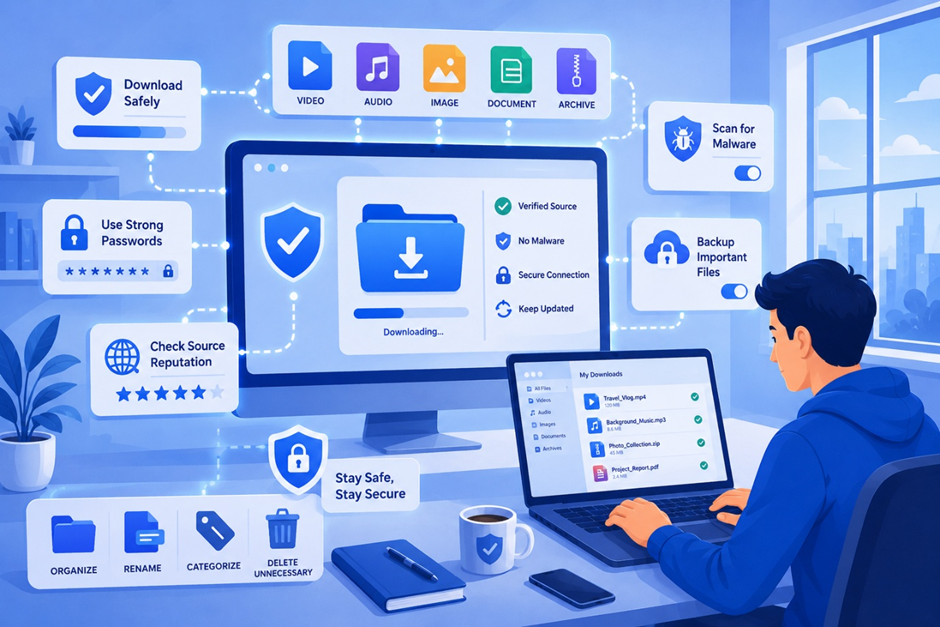
Every day, millions of people download something. A song, a PDF, a game, a work file, an app update. It feels normal, even boring. But this simple habit is also one of the easiest ways for hackers to get into your device.
Downloading digital content safely is not just a topic for tech experts anymore. It matters for students doing homework, parents managing family photos, and employees sharing work files. The threats have changed a lot over the years. Old viruses were annoying but simple. Today’s threats are smarter, quieter, and often hide inside things that look completely normal, like a free movie download or a “software update” pop-up.
This guide will walk you through everything you need to know about digital content security, from spotting fake download buttons to protecting your files with encryption. You do not need to be a computer expert to follow this. You just need a few good habits.
Before we talk about safety, let’s be clear about what we mean by “digital content.” It covers almost everything we use on our devices every day, including:
Software and apps – programs you install on your computer or phone
Documents and PDFs – reports, forms, and e-books
Music and videos – streamed or downloaded files
Games – both mobile and desktop
Images – photos, graphics, and wallpapers
Cloud files – anything stored on Google Drive, Dropbox, or similar services
Archives – ZIP or RAR files that hold multiple files together
Browser extensions – small add-ons that change how your browser works
Each of these can be a doorway for problems if you are not careful. A single infected file can lead to stolen passwords, locked files, or a device that stops working properly.
Common Risks of Downloading Digital Content
Not every download is dangerous, but many hide real risks. Here are the most common ones you should know about:
- Malwar – a general term for harmful software that damages or spies on your device
- Viruses – programs that spread by attaching themselves to other files
- Trojans – harmful programs disguised as something useful, like a free tool
- Spyware – hidden software that watches what you do and steals information
- Ransomware – locks your files and demands payment to unlock them
- Adware – floods your screen with unwanted ads
- Fake download buttons – buttons designed to trick you into clicking the wrong thing
- Phishing websites – fake pages built to steal your login details
- Malicious browser extensions – add-ons that secretly track or control your browser
- Pirated and cracked software – illegal copies of paid programs, often loaded with hidden malware
Imagine you are trying to download a popular game for free from a random website. You click what looks like the download button, but it’s actually an ad. Seconds later, your browser opens five new tabs and a strange program starts installing itself. This happens to real people every single day, and it is one of the easiest traps to avoid once you know what to look for.
Download Only from Trusted Sources
The single best habit for safe downloading practices is choosing where you download from. Stick to sources you know and trust, such as:
- Official websites of the software or content creator
- Verified app stores, like Google Play or the Apple App Store
- Trusted software repositories used by developers
- Publisher websites for documents, e-books, or tools
Unofficial download sites often bundle extra software with the file you actually want. Some even replace the real file with something harmful. If a website looks unfamiliar, has a strange name, or promises “free” versions of paid software, treat it as a warning sign.
A simple rule to remember: if you did not search for the exact name of the source, be extra careful before downloading from it.
Verify Websites Before Downloading
Not every website that looks official actually is official. Scammers are good at copying designs. Before you click download, check these details:
- HTTPS – look for the little lock icon in your browser’s address bar. It shows the connection is encrypted, though it does not guarantee the site is safe
- SSL certificates – these confirm the website’s identity, but always double-check the domain name too
- Domain names – make sure the spelling matches the real company exactly
- Typosquatting – this is when scammers register misspelled versions of popular websites, like “goggle.com” instead of “google.com”
- Website reputation – a quick search of the site’s name plus the word “reviews” or “scam” can reveal warning signs from other users
Here is a quick verification checklist:
- Type the website address yourself instead of clicking a link from an email or ad
- Check the spelling of the domain carefully
- Look for a lock icon and “https” in the address bar
- Search online for reviews if you are unsure
- Avoid sites with excessive pop-ups or broken design
Even after choosing a trusted source, it helps to confirm that the file you downloaded is exactly what it claims to be. This is especially important for software.
- Digital signatures show that a file was created by a verified developer and has not been changed
- Checksums and hash verification let you compare a code provided by the publisher with the code generated from your downloaded file, confirming they match
- Publisher verification in your operating system can show whether a program’s identity has been confirmed
- File properties often reveal useful details, like the true file type hiding behind a fake name
These steps matter most when you are downloading something important, like business software, financial tools, or anything that will run with high-level access on your device. For a quick song download, this level of checking is usually unnecessary. But for software installers, it is worth the extra minute.
Even careful downloads deserve a quick scan. Think of it as a seatbelt. Most of the time you won’t need it, but when you do, it matters.
- Antivirus software should run in the background at all times, checking new files automatically
- Windows Security (built into Windows) offers solid free protection for most users
- Online virus scanners let you upload a single file and check it against multiple antivirus engines at once
- Multi-engine scanning tools check a file using many different antivirus programs, which catches more threats than using just one
- Automatic scanning should be turned on so you don’t have to remember to do it manually
Even files from trusted sources can occasionally carry problems, especially if the source itself was compromised. A quick scan takes seconds and can save you hours of cleanup later.
Safe Software Installation Practices
Downloading a file safely is only half the job. How you install it matters just as much.
- Choose custom installation instead of the “quick” or “recommended” option whenever it’s available. This lets you see and uncheck anything extra
- Watch for bundled software – many free programs try to install extra toolbars or apps you never asked for
- Uncheck optional toolbars and other add-ons during setup
- Read permission requests carefully, especially on mobile apps
- Be cautious with administrator privileges – only grant this level of access to software you fully trust
A common mistake is clicking “Next, Next, Next” without reading anything. This is exactly how unwanted programs sneak onto your device. Slowing down for thirty extra seconds during installation can prevent weeks of frustration.
Managing Downloaded Files Securely
Once your files are safely downloaded, good organization becomes a security tool in itself. Messy folders make it easy to lose track of what’s safe and what isn’t.
- Organize files into clear folders by type or project
- Use clear file names so you always know what something is without opening it
- Keep regular backups on an external drive or cloud service
- Use version control for important documents, keeping older drafts just in case
- Store sensitive files on encrypted external storage when possible
- Choose reputable cloud storage providers with strong security records
Good organization also helps you notice quickly if something looks wrong, like a file that appeared without you downloading it.
Password Protection and Encryption
Your files deserve the same protection as your online accounts. Encryption simply means scrambling your data so only someone with the right key (usually a password) can read it.
- Use strong, unique passwords for every account and encrypted file
- Try a password manager to store and generate passwords, so you don’t have to remember dozens of them
- Create encrypted ZIP files when sending sensitive documents
- Turn on full-disk encryption (built into most modern laptops and phones) to protect everything if your device is lost or stolen
- Share files securely, using encrypted links or password-protected attachments instead of plain email
A strong password today looks less like “password123” and more like a random mix of words, numbers, and symbols that would be nearly impossible to guess.
Cloud storage is convenient, but convenience can come with risk if settings are left unchecked.
- Review access permissions regularly to see who can view or edit your files
- Be careful with sharing links – “anyone with the link” settings can expose files more widely than you intended
- Turn on two-factor authentication for an extra layer of login protection
- Check your sync settings so you know exactly what is being uploaded automatically
- Separate public and private folders clearly
- Keep a backup strategy even for cloud files, since accidental deletions and account issues can still happen
A good habit is to check your cloud sharing settings every few months, the same way you might check your phone’s storage. Old shared links can pile up and become forgotten security gaps.
Updates can feel annoying, especially when they interrupt what you’re doing. But they are one of the most effective tools for malware protection.
Updates matter for:
- Operating systems, which patch security holes as soon as they are discovered
- Browsers, since they are your main gateway to the internet
- Antivirus software, which needs current information to recognize new threats
- Applications, especially ones that connect to the internet
- Drivers and firmware, which control how your hardware works with your system
Turning on automatic updates removes the guesswork. Many serious security breaches happen simply because someone delayed an update for too long.
Phones and tablets carry just as much sensitive information as computers, sometimes more. Keep these habits in mind:
- Android users should stick to the Google Play Store and avoid enabling “unknown sources” unless truly necessary
- iPhone users benefit from Apple’s strict app review process, but should still check app permissions carefully
- Review app permissions before installing – a flashlight app should not need access to your contacts
- Use mobile security apps if you frequently download from varied sources
- Avoid downloading over public Wi-Fi without a VPN, since public networks can expose your data to others on the same connection
Recognizing Red Flags Before Downloading
Learning to spot warning signs is one of the fastest ways to avoid trouble. Watch for:
- Poor website design or broken layouts
- Excessive pop-up advertisements
- Fake countdown timers pressuring you to “act now”
- Unusually large or small file sizes for what you’re downloading
- Unexpected redirects to different websites
- Multiple download buttons on the same page
- Browser warnings that appear before or during download
- Requests to disable your antivirus before installing
If you see two or more of these signs, it’s best to close the page and look for the content elsewhere.
Sharing files is part of daily life, whether at school, at work, or with friends. A few habits make sharing much safer:
- Scan email attachments before opening, even from people you know, since accounts can be hacked
- Use encrypted USB drives for sensitive information
- Prefer cloud sharing with permission controls over sending large files through email
- Be cautious with messaging apps, especially with files from unknown contacts
- Avoid risky peer-to-peer transfers for anything sensitive
- Use approved workplace collaboration tools for company files instead of personal accounts
Protecting Personal Information
Every download can reveal a little information about you, sometimes more than expected.
- Check privacy settings on apps and services regularly
- Understand what data is collected, especially by free apps
- Be aware of tracking cookies used by many websites
- Review download permissions before granting access to your camera, microphone, or location
- Remember that files carry metadata, like the date, device, or even location where they were created
Taking two minutes to check privacy settings after installing something new is a small habit that adds up to real protection over time.
Just like physical spaces need regular cleaning, your digital space benefits from routine care.
- Clean up your downloads folder regularly instead of letting it pile up
- Remove unused apps and files you no longer need
- Delete outdated software that no longer receives updates
- Update your passwords periodically, especially after any data breach news
- Monitor your storage to catch unusual file growth early
- Review app and account permissions every few months
Familiar Names That Made Safe Downloading a Habit
Understanding the risks is one thing. Knowing which tools have actually earned people’s trust over time is another, and a handful of names come up again and again for a reason.
Vidmate remains one of the go-to choices for saving video and audio for offline use, largely because its interface has stayed simple while competitors added feature after feature. Checking a tool’s own official page before installing, rather than trusting a random search result, is always the safer first step.
Spotify shows how far mainstream apps have come in normalizing offline access. Downloading a playlist before a trip or a commute is now second nature for millions of people, and it’s a good reminder that safe, reliable downloading doesn’t have to mean stepping outside familiar, well-vetted apps.
Netflix follows the same pattern on the video side. Its download feature works quietly in the background of most people’s routines, no unfamiliar interface, no guessing whether the source can be trusted, since the app itself is the source.
UC Browser builds saving directly into everyday browsing, cutting out the need to switch between a browser and a separate app. The same scrutiny that applies to any download tool still applies here, since built-in convenience doesn’t remove the need for trust.
None of these tools remove the need for personal judgment. Even a familiar, trusted name should be verified through its own official channels rather than assumed safe by reputation alone. Familiarity is a starting point, not a substitute for checking.
Even careful people slip into bad habits sometimes. Watch out for these common ones:
- Downloading cracked or pirated software to save money
- Ignoring browser warnings because they feel like a hassle
- Disabling antivirus temporarily “just this once”
- Opening unknown attachments without checking the sender
- Using public Wi-Fi for sensitive downloads without protection
- Reusing the same password across multiple accounts
- Installing everything with default settings without reviewing what’s included
Each of these might seem small on its own, but together they create serious openings for attackers.
Emerging Trends in Digital Content Security
The world of online security keeps changing, and a few trends are shaping what safe downloading will look like in the coming years:
- AI-powered threat detection can spot suspicious behavior faster than older, rule-based systems
- Smart antivirus systems learn from new threats across millions of devices at once
- Zero Trust security treats every file and connection as unverified until proven safe, rather than assuming anything inside a network is automatically trustworthy
- Secure cloud ecosystems are building stronger built-in protections
- Digital identity verification is making it harder for scammers to impersonate real companies
- Browser security improvements now catch many threats before a file even finishes downloading
These tools are promising, but they are not perfect. New threats appear just as quickly as new defenses, which means personal habits will always matter, no matter how advanced the technology becomes.
Before your next download, run through this quick checklist:
- Is this from an official or trusted source?
- Does the website use HTTPS and look legitimate?
- Have I checked the domain name for spelling mistakes?
- Will I scan the file before opening it?
- Am I choosing custom installation to avoid bundled software?
- Is my antivirus active and updated?
- Are my operating system and browser up to date?
- If sharing this file, is it password protected or encrypted?
- Have I checked the permissions this app or file is requesting?
- Would I feel comfortable if a friend downloaded from this exact source?
If you can answer yes to most of these, you’re in good shape.
Safe downloading doesn’t require you to become a cybersecurity expert. It just means slowing down for a few extra seconds, checking the source, and building small habits that protect you over time. Most online threats rely on people rushing, clicking without thinking, or trusting things that look official but aren’t.
The internet will keep changing, and so will the threats hiding inside it. But the basics covered here, trusted sources, careful verification, regular scanning, strong passwords, and simple digital hygiene, will stay useful no matter what comes next. Build these habits once, and they will quietly protect you every single time you click download.
- Is it actually safe to download videos or music from third-party apps? Honestly, yes, most of the time, as long as you’re using an app that’s been around a while and has a decent reputation. The danger isn’t really in downloading itself. It’s in grabbing something from a random, unfamiliar site you’ve never heard of before.
- How do I know if a download source is trustworthy? A few things give it away pretty fast: a real developer name attached to it, permissions that actually make sense for what the app does, an update history that isn’t years old, and reviews that don’t all sound the same. If a page feels thin on details, that’s usually a sign to walk away.
- Why do some of these apps ask for so many permissions? Some of it’s legitimate, an app needs storage access to, well, store things. But when a simple video saver wants your contacts or your location, that’s worth pausing on. There’s no good reason for that kind of overreach.
- Does all this downloading eat up my phone’s storage fast? It absolutely can, video especially. Going through your downloads every now and then and clearing out what you don’t need anymore isn’t just good for space, it also makes it way easier to notice if something looks off.
- Should I bother backing things up, or is keeping it on my phone enough? If it’s something you actually care about keeping, back it up. Phones get lost, dropped, stolen, or just die without warning, and you don’t want the only copy of something sitting on a device that could disappear tomorrow.
- How often should I actually check app permissions?Every couple of months is plenty. It only takes a few minutes, and you’d be surprised how many old permissions are just sitting there active for apps you barely use anymore.
- Are official app stores always the safer bet? For the most part, yes, they’ve got some level of review process backing them up. But “official store” isn’t a free pass either. It’s still worth a quick look at who made the app and what people are actually saying about it.
- What’s the big deal with skipping updates? Updates aren’t just new features, a lot of them are quietly patching security holes that got discovered after the app launched. Sitting on an old version means you’re carrying around problems that have already been fixed for everyone else.
- Do editing apps need the same level of caution as downloading apps? Yeah, pretty much. It doesn’t matter if an app’s job is pulling content in or editing it afterward, it’s still touching your files, so it deserves the same level of scrutiny either way.
- Is it smarter to use one app for everything, or a bunch of specialized ones? Generally, fewer apps means fewer chances for something to go wrong. If one solid app covers what you need, that beats juggling five different tools that each ask for their own set of permissions.